The ToS Custom Study Color Bible
When modifying an indicator's colors in ThinkOrSwim, the code dictates where and how that color can be changed. There are three primary ways colors are defined in custom scripts.
1. Globals
Colors Modifiable in the Global Inputs (DefineGlobalColor)
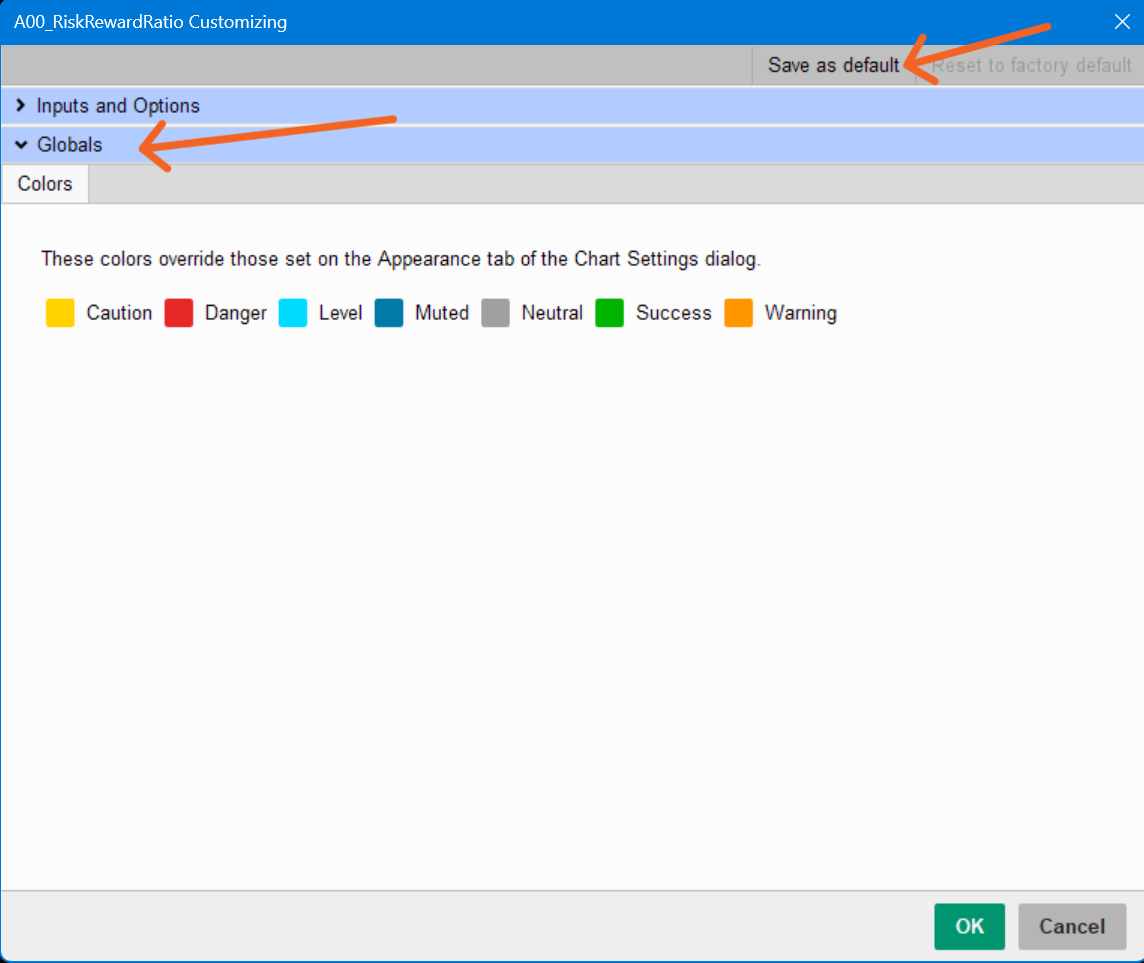
Open Settings:
2. Inputs and Options
How to Access and Modify Plot-Specific Colors
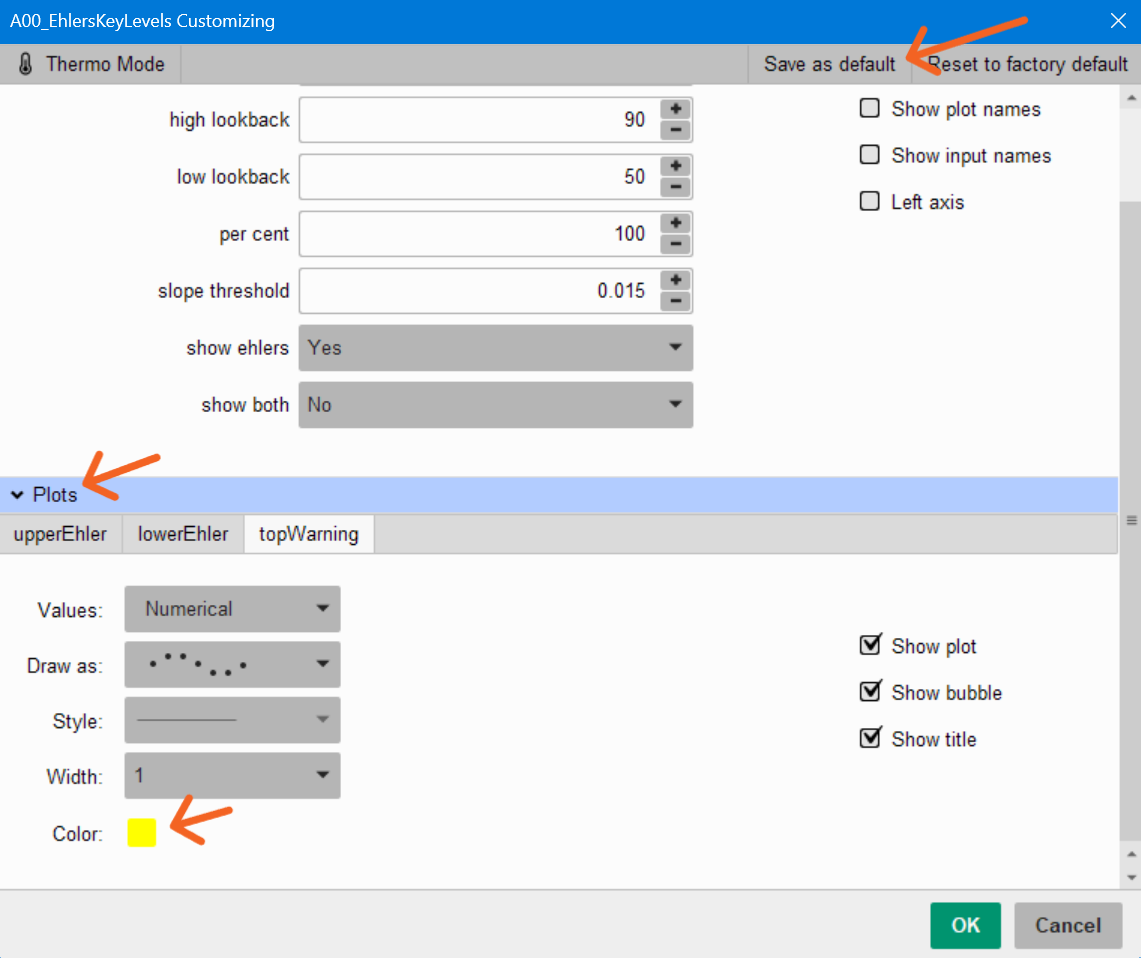
Scroll midway down
Locate the Plots Section:
Look for the specific name of the plot line you want to change.
Change the Color: Click the color box labeled Color or Value Color within that plot's dropdown menu.
click save as default, if you want to make these colors permanent on all future charts
Apply Changes: Save and apply to see the updates on your chart.
YES! YOU CAN CHANGE THIS COLOR!
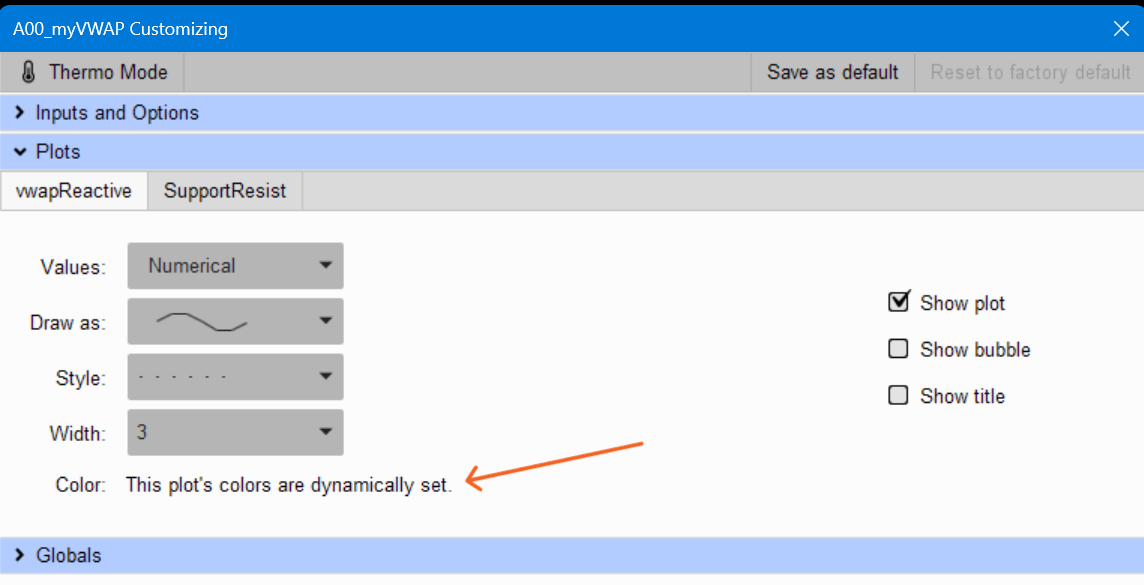
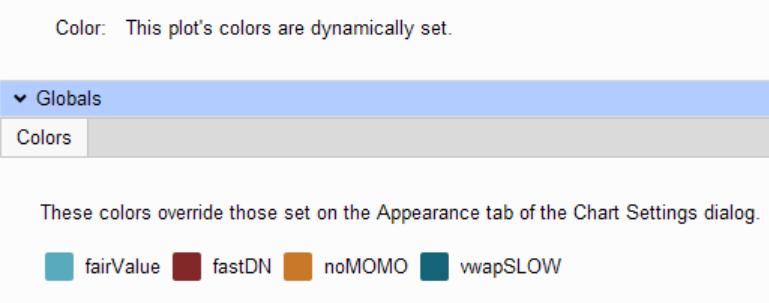
First double-check under > Globals
3. Deep Dive
– Hunting & Editing Hardcoded Colors
Open the Script Editor. Double-click on the scroll icon
Start from the bottom of the code as plot statements are traditionally at the end.
Look for:
Standard Named Colors (Color.ORANGE)
This is the most common format. The script explicitly names a built-in ToS color.
Delete the old color text and type in one of these:
https://toslc.thinkorswim.com/center/reference/thinkScript/Constants/Color
Example Swap: Change Color.GREEN to Color.CYAN.
Color Index Numbers (GetColor(2))
ThinkOrSwim has 10 default palette colors numbered 0 through 9.
Delete the old color number and type in one of these:
https://toslc.thinkorswim.com/center/reference/thinkScript/Functions/Look---Feel/GetColor
Example Swap: Change GetColor(4) to GetColor(1) to switch from Red to Cyan.
Custom RGB Code (Most Flexible) CreateColor(0, 255, 127)
Replace the RGB code with anything you want:
https://rgbcolorpicker.com/
https://toslc.thinkorswim.com/center/reference/thinkScript/Functions/Look---Feel/CreateColor
Example swap:
Bright Neon Green: CreateColor(0, 255, 127)
Muted Pastel Red: CreateColor(240, 128, 128)
Electric Blue: CreateColor(0, 191, 255)
Gold/Warm Yellow: CreateColor(255, 215, 0)
 Note: Clicking "Save as Default" ensures that every time you load this custom indicator onto a new chart layout or a different ticker symbol in the future, it will remember your freshly edited hardcoded color choices automatically.
When modifying an indicator's colors in ThinkOrSwim, the code dictates where and how that color can be changed. There are three primary ways colors are defined in custom scripts.
1. Globals
Colors Modifiable in the Global Inputs (DefineGlobalColor)
Open Settings:
Click the Gear Icon (Settings) located directly to the right of the indicator's name.
▸ Locate Global Colors:
▸ Scroll all the way to the bottom
▸ Look for a section explicitly headered Global Colors
Change the Color:
▸ Click on the colored square swatch next to the label
▸ select your new color from the palette
click save as default, if you want to make these colors permanent on all future charts
click OK to Apply Changes
2. Inputs and Options
How to Access and Modify Plot-Specific Colors
Scroll midway down
Locate the Plots Section:
Look for the specific name of the plot line you want to change.
Change the Color: Click the color box labeled Color or Value Color within that plot's dropdown menu.
click save as default, if you want to make these colors permanent on all future charts
Apply Changes: Save and apply to see the updates on your chart.
YES! YOU CAN CHANGE THIS COLOR!
First double-check under > Globals
3. Deep Dive
– Hunting & Editing Hardcoded Colors
Open the Script Editor. Double-click on the scroll icon
Start from the bottom of the code as plot statements are traditionally at the end.
Look for:
Standard Named Colors (Color.ORANGE)
This is the most common format. The script explicitly names a built-in ToS color.
Delete the old color text and type in one of these:
https://toslc.thinkorswim.com/center/reference/thinkScript/Constants/Color
Example Swap: Change Color.GREEN to Color.CYAN.
Color Index Numbers (GetColor(2))
ThinkOrSwim has 10 default palette colors numbered 0 through 9.
Delete the old color number and type in one of these:
https://toslc.thinkorswim.com/center/reference/thinkScript/Functions/Look---Feel/GetColor
Example Swap: Change GetColor(4) to GetColor(1) to switch from Red to Cyan.
Custom RGB Code (Most Flexible) CreateColor(0, 255, 127)
Replace the RGB code with anything you want:
https://rgbcolorpicker.com/
https://toslc.thinkorswim.com/center/reference/thinkScript/Functions/Look---Feel/CreateColor
Example swap:
Bright Neon Green: CreateColor(0, 255, 127)
Muted Pastel Red: CreateColor(240, 128, 128)
Electric Blue: CreateColor(0, 191, 255)
Gold/Warm Yellow: CreateColor(255, 215, 0)
Note: Clicking "Save as Default" ensures that every time you load this custom indicator onto a new chart layout or a different ticker symbol in the future, it will remember your freshly edited hardcoded color choices automatically.